1. Separate the label from neighbouring content
Locate the recipient block, tracking reference, codes, borders and small print. An adjacent receipt, return instruction or promotional banner is not necessarily part of the label. When unsure whether a line matters, preserve it instead of removing it to save a few millimetres.
The large rectangle in the PDF may be the whole page rather than the shipping label. Examine its contents. A brand name embedded in a reference is also insufficient to identify a carrier or cropping variant.
2. Correct the right frame in Label2A4
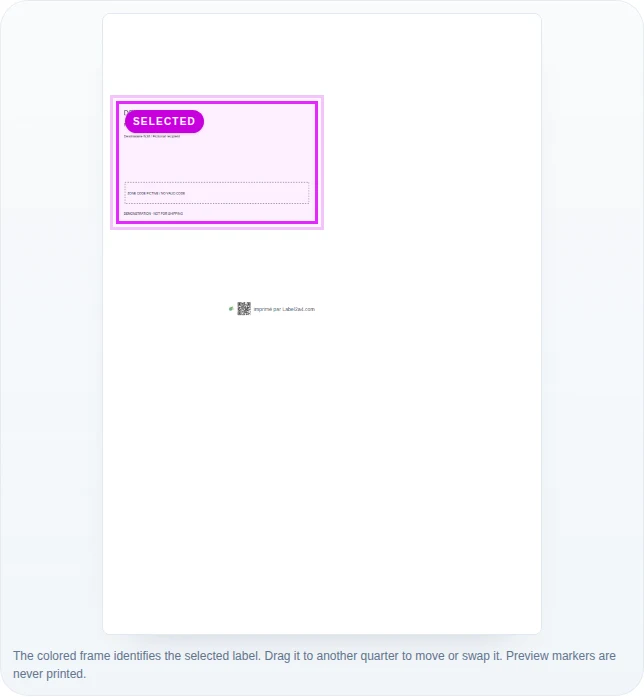
After import, examine the source and the preview. Select the relevant label before using its frame handles. Labels detected on the same page can have independent frames: editing one must not remove its neighbours.
When detection does not fit, open detection settings and the carrier or manual mode selector. Free selection lets you draw a region. Reset this crop lets you undo an adjustment; check the new output before continuing.
3. Check all four edges after rotation
Pay particular attention to the bottom edge: small print may appear below the main code. The top may contain a heading or service information. The sides must preserve the clear space around codes.
Rotation changes reading orientation; it does not turn an attachment into a label. After rotating, inspect the visible content, not just the angle. When applying a setting to a mixed batch, check each layout family rather than assuming every file is identical.
4. Practice with a file containing no personal data
The practice PDF contains a labelled fictitious region and neighbouring elements. Import it, choose Free selection and select the exercise region. Compare its heading, fictitious references and margins in the source and output.
This file teaches the controls; it does not represent all carrier formats. When a real document fails, keep the original for comparison and report the carrier, expected label count and incorrect edge. Avoid transmitting real addresses or tracking references unnecessarily.
In the actual Label2A4 interface
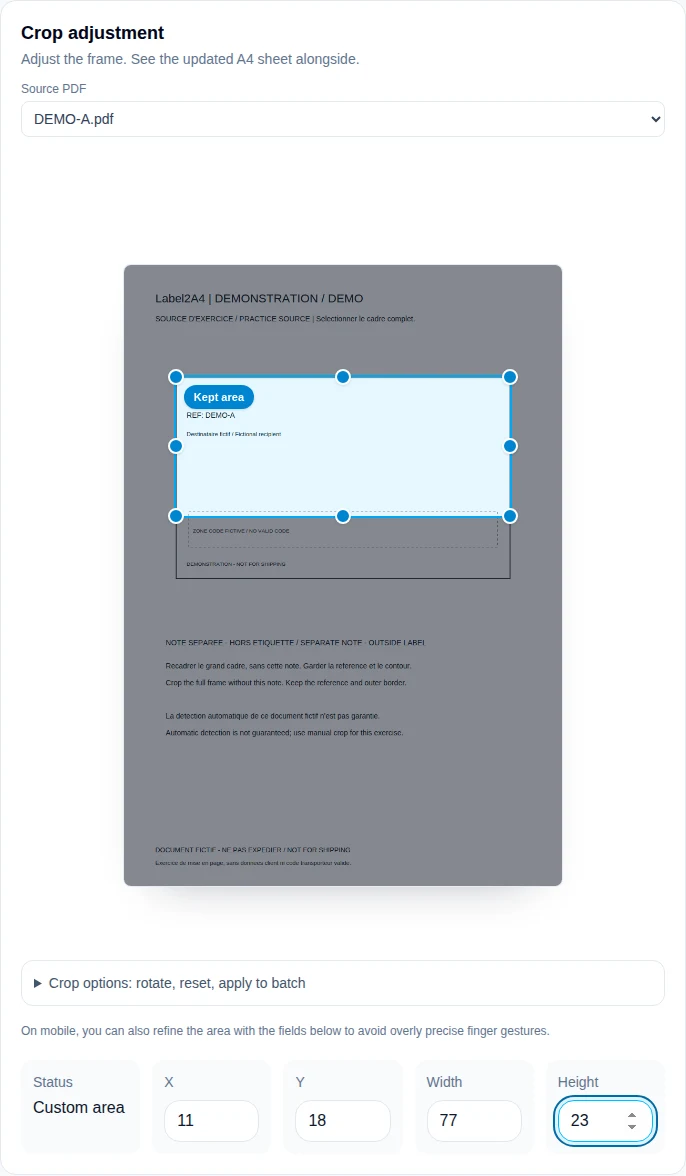
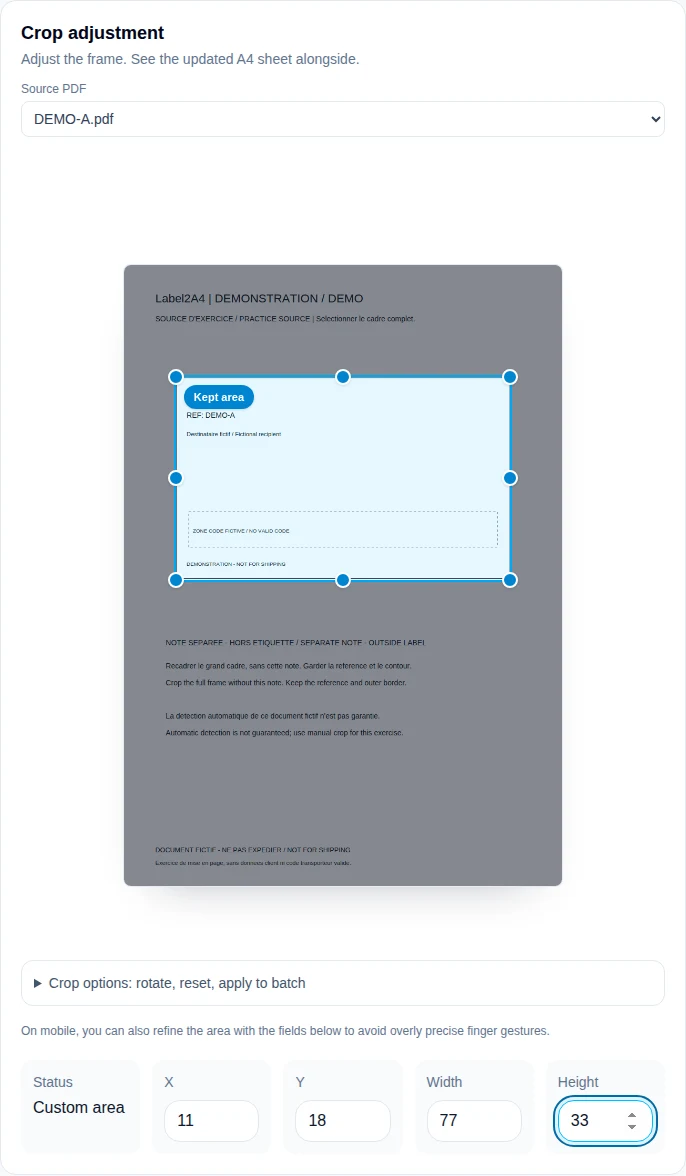
Screenshots taken on 8 September 2026 using the fictional DEMO A practice file, with no customer data. Open an image to inspect its controls at full size.
| Output | Possible cause | Action |
|---|---|---|
| Code visible, bottom text missing | Frame too short | Extend the lower edge while excluding attachments |
| Another label changes | Wrong frame selected | Return to the source and select the correct region |
| Receipt included in output | Region too wide or wrong variant | Correct the separation between label and receipt |
Practice, then check
Teaching PDFs are fictitious, contain no customer data and are not valid postage. They do not replace a physical print or carrier check.
Fictitious crop practice PDFCropping clips a page region in the composition; it is not secure PDF redaction or confidential data removal.
Sources and method
Workflow instructions describe Label2A4; numerical examples are calculations, not carrier acceptance tests.
Adobe Acrobat: PDF page size and printingLabel2A4 method and limitations