
A4 printing guide
Logo Colissimo

Colissimo

Print Colissimo shipping labels on a compact A4 layout

Label2A4 prepares your Colissimo labels for a cleaner A4 print workflow without recreating the label or changing the PDF content.

Colissimo profileA4 x4Easy cutting
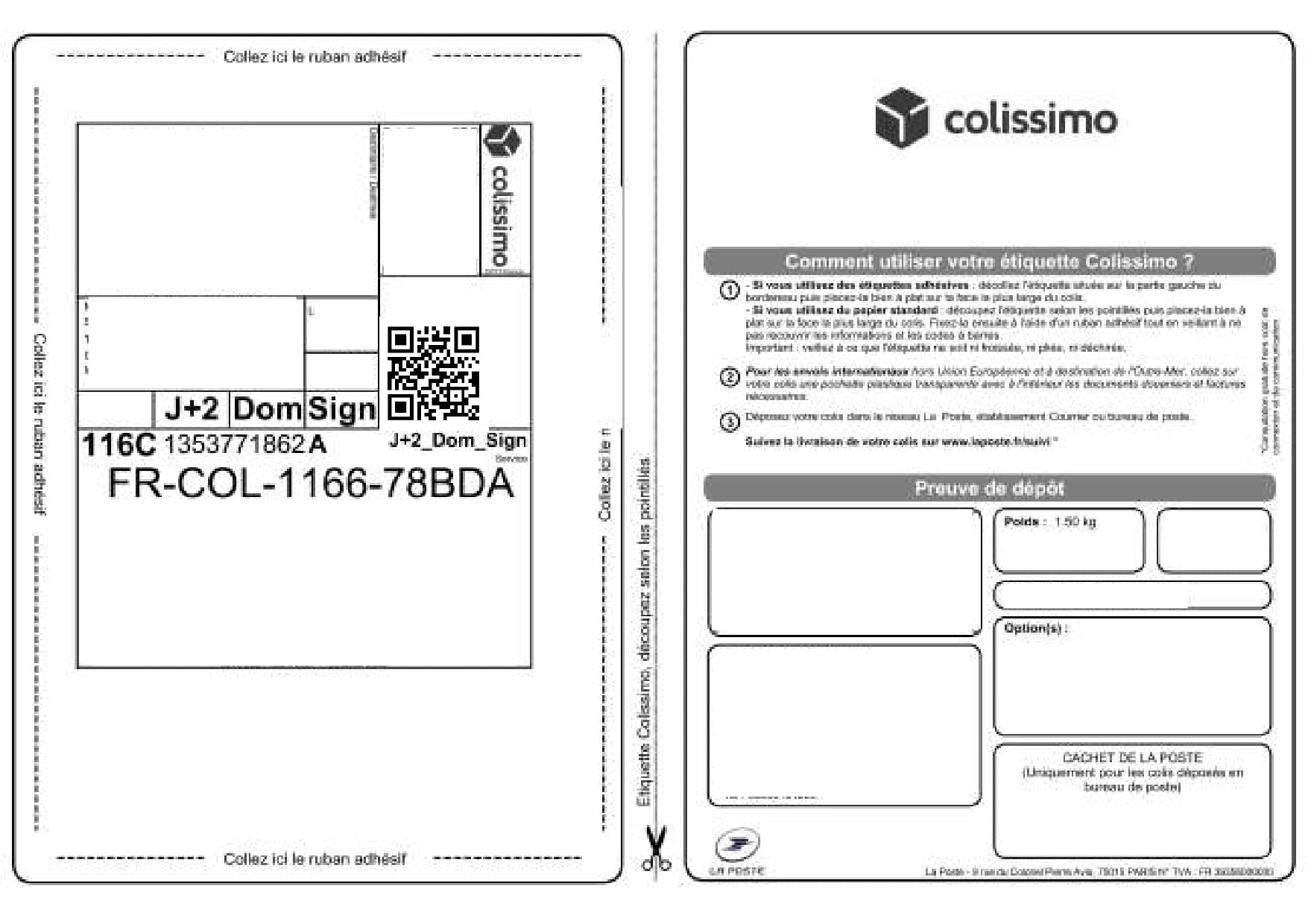
Before
A single Colissimo shipping label printed on one sheet
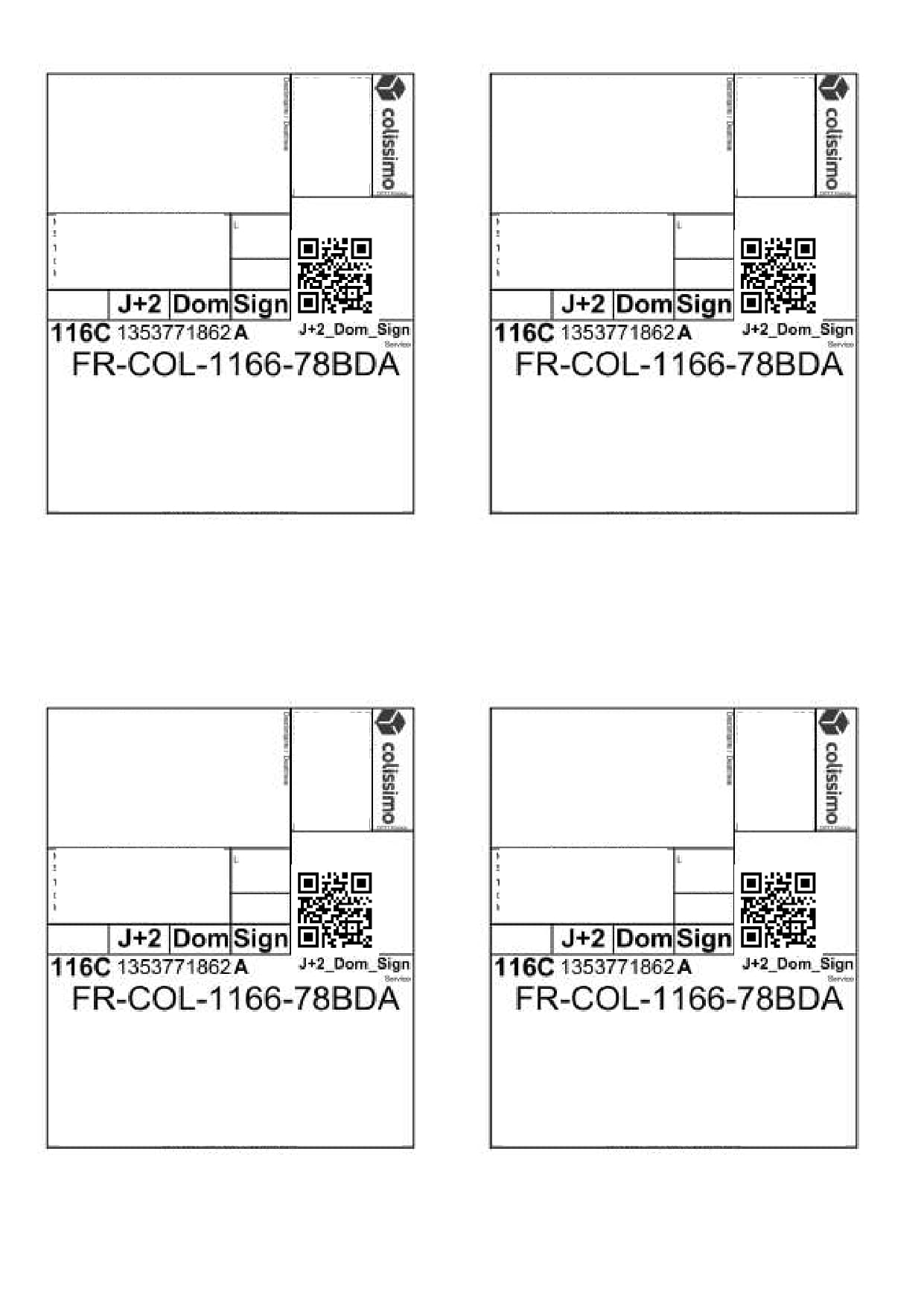
After
Four Colissimo shipping labels grouped on one A4 sheet

Colissimo labels often take a full page

For regular sellers, printing each label on its own sheet multiplies paper usage, cutting time and printing costs.

One optimized PDF with four slots

The tool isolates the useful Colissimo label area, then creates a consistent A4 sheet that is easier to print and cut.

Use cases

For individuals and businesses

The same carrier PDFs can be optimized for occasional shipments or for recurring fulfillment volumes.

Peer-to-peer sales

Group the day’s Colissimo shipments into a more compact print output.

Online stores

Reduce paper usage when several orders are sent with Colissimo.

Batch preparation

Keep one final PDF to review, print and cut your labels.

Savings

Less paper for recurring shipping volumes

A batch of 20 labels can require around 5 sheets instead of 20 with a four-up A4 layout.

Simple process

1

Add your Colissimo PDFs in the order you want.

2

Choose the Colissimo profile.

3

Generate and download the final A4 sheet.

FAQ

Frequently asked questions

How do I reduce a Colissimo label for A4 printing?

Use the Colissimo profile in Label2A4 to isolate the useful area and place the label on an A4 sheet automatically.

Will the Colissimo barcode stay readable?

The goal is to keep the output sharp and printable. Always check the final preview before printing, especially when the source PDF quality is low.

Turn your next PDFs into A4 x4 sheets

Use the existing tool to upload your PDFs, apply the right carrier layout and generate an A4 sheet ready to print.

Open the tool