Reproducible exercise
Diagnosis: identify the first stage where the result is wrong
Compare the original file, the selection inside Label2A4 and the exported PDF. Correct the responsible stage rather than repeatedly converting the document.
Fictional teaching files. No customer data, valid postage or carrier certification. Do not use them for a shipment. Downloads do not send any of your documents.
- Open the source in a PDF reader. It contains DEMO A with its reference and a separate note below the frame.
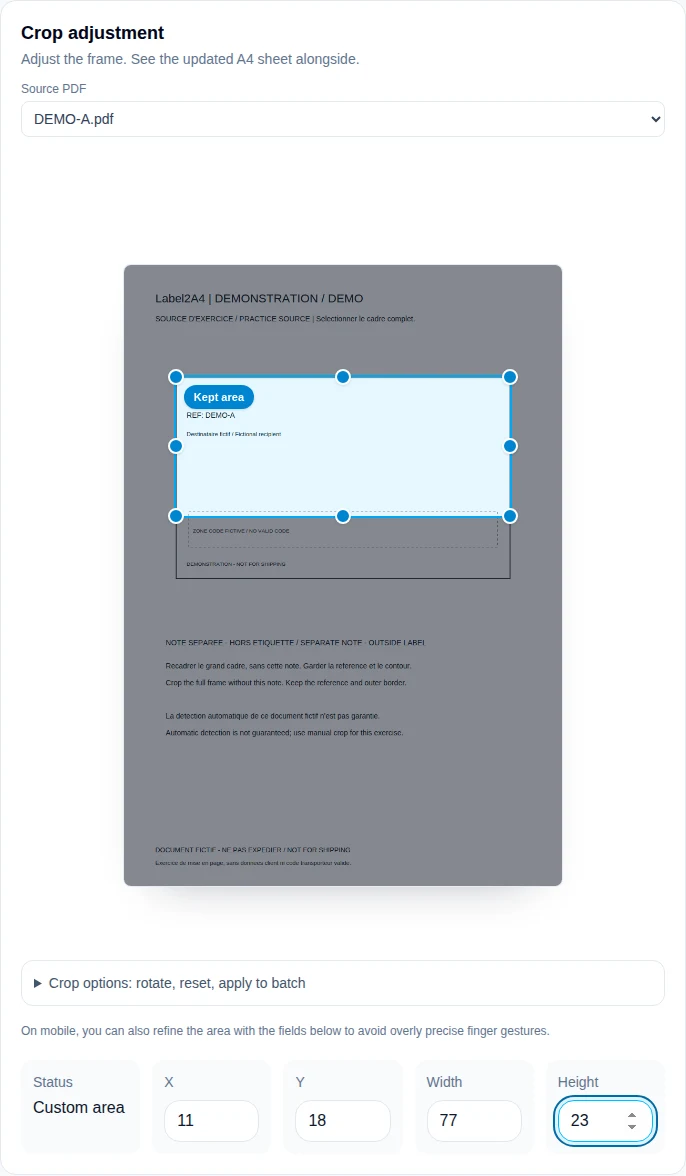
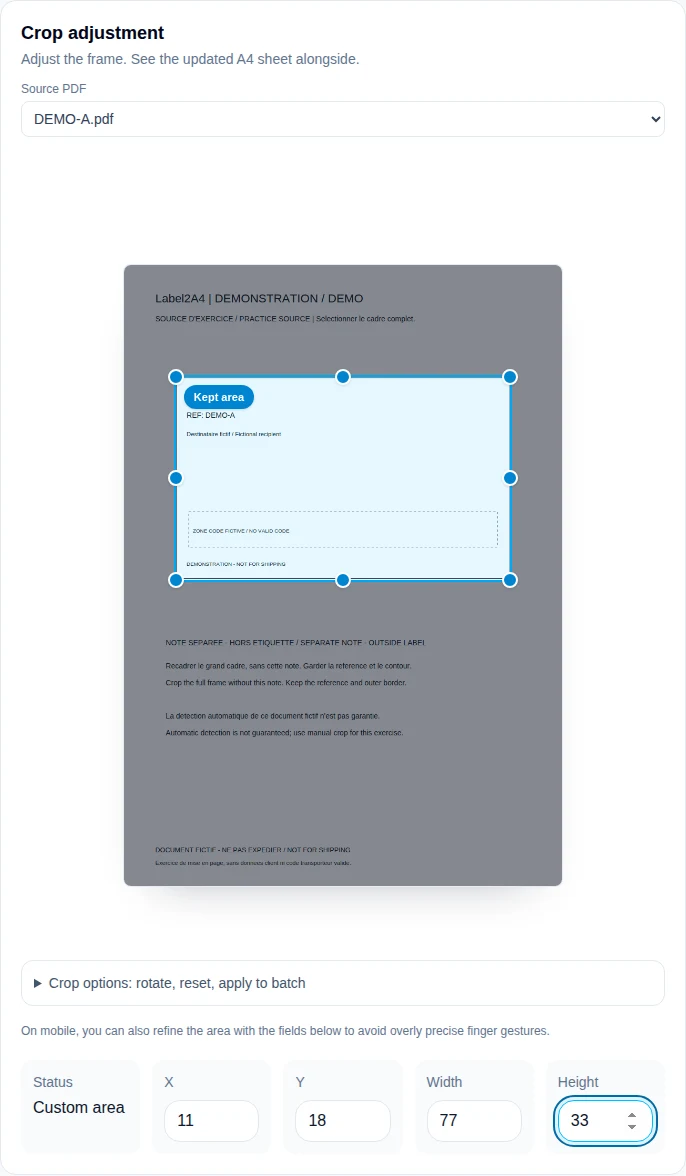
- Import the same source into Label2A4. If the preview includes the note or clips an edge, correct the crop before export.
- Download and open the output separately. If it is complete but the paper is not, investigate print settings rather than cropping.
- For a real support request, include the carrier, expected label count, browser and first incorrect stage. Do not publicly post names, addresses or personal tracking details.
In the actual Label2A4 interface
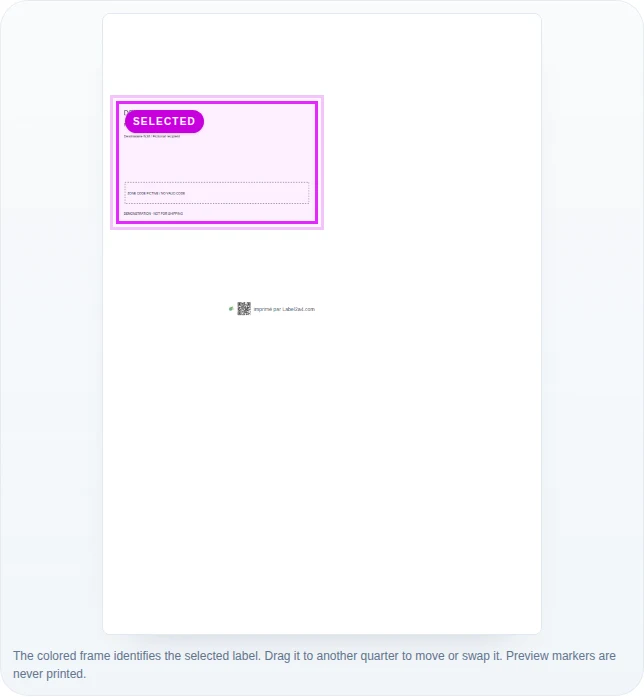
Screenshots taken on 8 September 2026 using the fictional DEMO A practice file, with no customer data. Open an image to inspect its controls at full size.
| Symptom | What to check | Correction |
|---|---|---|
| No reader can open the source | Incomplete download, encryption or damage | Download it again from its official source; cropping cannot fix an unreadable PDF |
| Source complete, preview clipped | Detection missed part of the frame | Use manual crop on the untouched source |
| Preview correct, exported PDF wrong | Compare the same output in another reader | Keep a reproducible case and contact support |
| Output correct, paper shrunk | Check driver preview and scaling | Run the A4 calibration exercise before printing a batch |
A useful report identifies the first failing stage. Automatic detection of this fictional document is not guaranteed and it is not a carrier compatibility sample. Manual cropping remains available for the exercise.
Exercise added : . Physical printing and carrier scanning are not validated by these examples.
1. The PDF will not open
Open it in an independent PDF reader. If it requests a password, remains blank everywhere or is reported as damaged, download it again from the order. Renaming an extension or printing a screenshot to PDF does not repair the original structure.
Confirm that it is a PDF rather than a web page saved with a misleading extension. An interrupted download can produce an unusually small file. Solve that at the source before importing it.
2. The wrong area is selected
Pages can contain several code-like patterns: tracking code, return QR, partner reference or an advert. Automatic detection combines clues, but a new layout can make a secondary code look more prominent.
Start with the carrier profile. Rotate in quarter turns if needed, then crop manually around the complete label. Include clear code margins, address and human-readable tracking text rather than drawing a box around only the logo or main symbol.
3. The label is rotated
Declared PDF dimensions and visual orientation do not always agree. A label may be drawn sideways inside a portrait page or use an internal rotation value. Correct the visual orientation in the preview before export.
Rotation also improves use of an A6 position. Recheck the crop after turning because width and height swap. A tiny result may simply be using the wrong orientation.
4. A blank or advertising page is selected
Marketplaces and intermediaries may add instructions, a sales receipt or an advert. Exclude a genuinely blank page. Instructions may still be useful but should not take a label slot if they are not attached to the parcel.
Handle commercial invoices and customs declarations under carrier instructions. A4 x4 optimisation is intended for parcel labels; it does not replace the prescribed layout or copy count of other documents.
5. Printed output is too small or clipped
When the Label2A4 preview is correct but paper is not, inspect the print dialog: A4, portrait, one page per sheet and 100%. Do not choose four pages per sheet because the file already contains four positions.
When the on-screen preview itself is too small, crop away large empty source areas. Expand a crop if useful content is missing. Print one page before committing the full batch.
6. When to contact support
Report a reproducible issue when the untouched PDF opens normally but detection consistently selects the wrong area, misses one item on a multi-label page or exports something different from the preview. Include carrier, browser, expected page count and steps.
The original file is the best example for improving a profile. Editing out an address can change its structure; contact support first if the data is sensitive. Label2A4 normally processes files in the browser and does not retain them to create the output.
Important: Automatic detection is an aid. The sender remains responsible for checking recipient, tracking reference and code integrity before attachment.