
Reproducible exercise
Exercise: retain the whole label, not just its code area
The source contains a DEMO A frame and a separate note. Keep the reference and outer frame without including that note. The code area is deliberately fictional: this exercise checks cropping, never scanner performance.
Fictional teaching files. No customer data, valid postage or carrier certification. Do not use them for a shipment. Downloads do not send any of your documents.
- Download the demonstration file, import it into Label2A4 and compare the selected region with the large original frame.
- Use manual crop if detection includes the note or the whole page. Keep DEMO A, DEMO-A, the fictional recipient and the code area together.
- Export one sheet. Compare the reference, all four frame edges and the code area with the original before printing.
In the actual Label2A4 interface
Screenshots taken on 8 September 2026 using the fictional DEMO A practice file, with no customer data. Open an image to inspect its controls at full size.
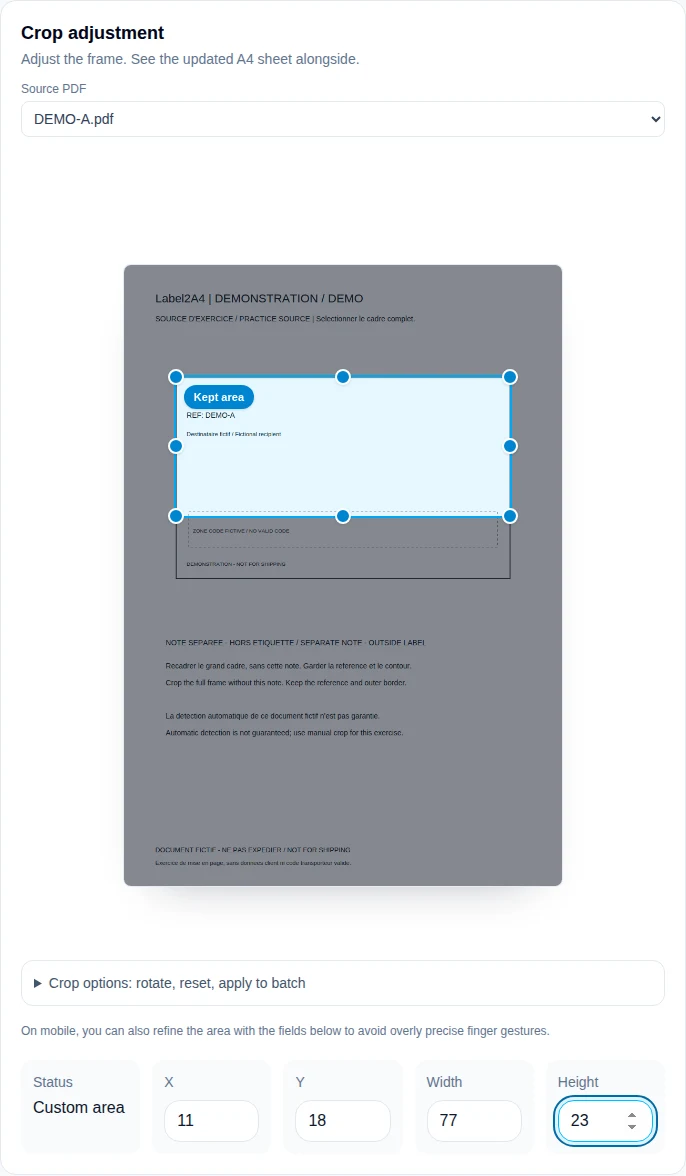
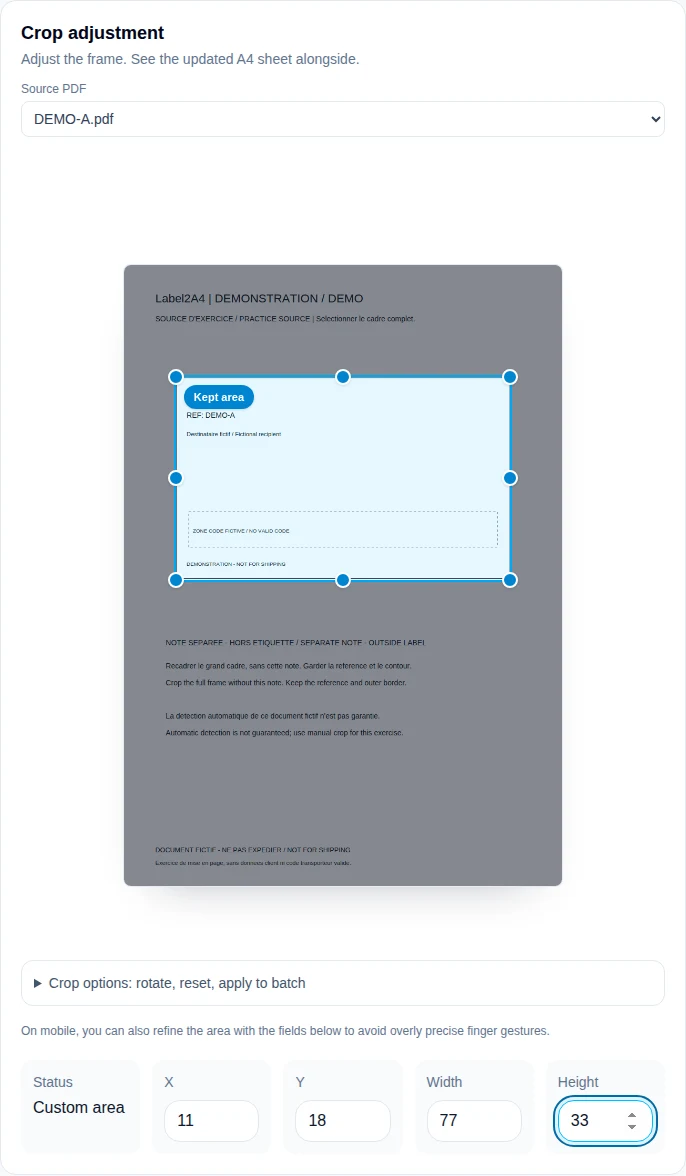
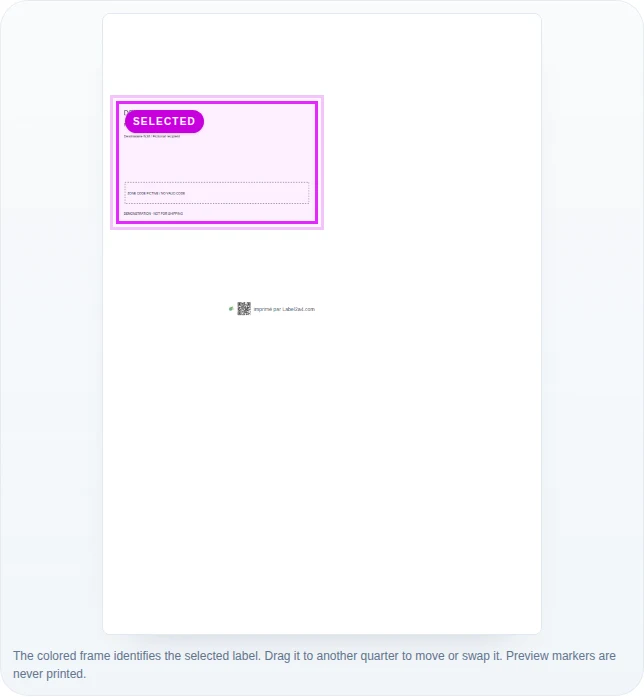
| Symptom | What to check | Correction |
|---|---|---|
| DEMO-A disappears | The crop starts too low | Enlarge the crop; do not recreate missing text |
| The separate note appears | The selection extends beyond the label | Reduce the selection around the complete frame |
| An edge of the code area is missing | Useful content touches the crop boundary | Return to the source and retain the complete area |
Expect one complete fictional label without the separate note. A real shipment still requires carrier instructions and a physical print check. This sample cannot validate barcode dimensions or scanning at drop-off.
Exercise added : . Physical printing and carrier scanning are not validated by these examples.
1. Start with the original file
Use the PDF downloaded from the carrier or marketplace, not a screenshot or phone photo. A PDF usually preserves fine lines and text more accurately. Repeated PDF-to-image conversions introduce blurred pixels around bars even when the preview looks acceptable at a small size.
At 100% zoom, locate the main barcode, any QR code, the tracking number printed as text, the service and the recipient block. If an essential part is already missing from the original, a layout tool cannot rebuild it. Download the document again from its source.
- The PDF opens without a password or corruption warning.
- The main symbol is complete and does not touch the page edge.
- The tracking number is readable without extreme zoom.
- Customs documents are separated from the parcel label.
2. Keep the clear area around each code
White space around a barcode helps a scanner detect where the symbol starts and ends. A crop that is too tight, overlaid text or opaque tape can interfere. Label2A4 keeps padding inside each slot, but the preview is still the final check when an original uses an unusual layout.
Look for straight, distinct bars. Merged lines, visible stair-stepping or grey blocks often point to low resolution. Return to the source PDF instead of converting the same file several times.
3. Print one test sheet
For a new format or printer, export one sheet and print it on ordinary paper. Select A4. Because Label2A4 already creates an A4 page, start with Actual size or 100%. Fit can help with a printer that has large non-printable margins, but it adds another reduction and requires closer inspection.
Compare paper with the final preview. Text should not bleed, black lines should be solid and no edge should be clipped. Disable draft or ink-saving mode for labels. Monochrome printing is generally suitable when black remains dense and the background clean.
Important: A phone app reading a code is useful evidence, not a guarantee: carrier equipment and conditions at the drop-off point can differ.
4. Check human-readable information
Verify the recipient name and town, tracking number, carrier product and any return indication. These details help prevent two labels being swapped and provide a manual fallback if a symbol is damaged.
For batches, keep a consistent sequence from imported file to sheet position and prepared parcel. Do not identify a carrier only from a logo or a text fragment: a label may mention a logistics partner. Match the service, tracking reference and address blocks to the parcel.
5. Cut and apply without damage
Leave a white border, then place the label on the largest flat face. Avoid edges, closures and curved areas. Smooth any document pouch so bubbles and folds do not cross the code.
Secure paper at the sides. Do not cover symbols with opaque, textured or highly reflective tape. Remove or completely hide old labels so that two readable routing codes cannot compete.
6. Know when to print again
Print again when a bar is missing, pale stripes cross the code, the tracking text cannot be read or a fold crosses the symbol. Return to the original if rotation or cropping has removed a useful field. Saving one sheet is never worth a delayed parcel.
Keep the final PDF until drop-off and rely on the carrier for label validity, tracking, customs papers and operational requirements. Label2A4 prepares the layout; it does not approve a shipment for a carrier.